
Table of Contents
- Why I Made This List (And Why You Should Trust It)
- 1. Sider AI — The All-in-One Browser Sidekick
- 2. Perplexity AI — My Daily Research Partner
- 3. Monica AI — For Emails and Writing
- 4. Grammarly — Still the Best Writing Assistant
- 5. Bardeen — The Automation Tool That Saves Hours
- 6. Eightify — YouTube Summarizer I Can’t Live Without
- 7. HARPA AI — Web Automation That Actually Works
- 8. Glasp — How I Highlight and Remember Everything
- 9. Tactiq — Never Take Meeting Notes Again
- 10. Important: How Many Should You Install?
- 11. Frequently Asked Questions
Why I Made This List (And Why You Should Trust It)
I want to be straight with you before we start.
I have installed and tested more than 50 AI Chrome extensions during my real work, like writing content, researching and even for editing on a daily basis, over the past few years.
Most of them got uninstalled within a week. Some were slow. Some were confusing. Some collected way more data than they needed to. (If you care about AI and privacy, I wrote about this in detail in my AI Ethics Issues 2026 post.). And a few just did not work as advertised.
The 9 extensions in this list are the ones that are still on my browser right now. Today. Not the ones that were impressive in a demo. Not the ones with the slickest marketing. The ones I actually open, every single day, because they make my work genuinely faster and better.
If you are, someone who spends hours during work, writing, researching, managing a team, making automations, the right extension can save you a lot of hours.
| My Promise to You: No sponsored placements in this list. Every extension was tested personally. I will tell you exactly who each one is for — and who should skip it. Not every tool is right for every person. |
Let’s get into it.
Quick Comparison — All 10 at a Glance
| Extension | Best For | Free? |
| Sider AI | All-in-one assistant | Yes (limited) |
| Perplexity | Research | Yes |
| Monica AI | Writing & emails | Yes (limited) |
| Grammarly | Grammar & tone | Yes |
| Bardeen | Workflow automation | Yes (limited) |
| Eightify | YouTube summaries | Yes (limited) |
| HARPA AI | Web automation | Yes (limited) |
| Glasp | Highlighting & notes | Yes |
| Tactiq | Meeting transcription | Yes (limited) |
1. Sider AI — The All-in-One Browser Sidekick
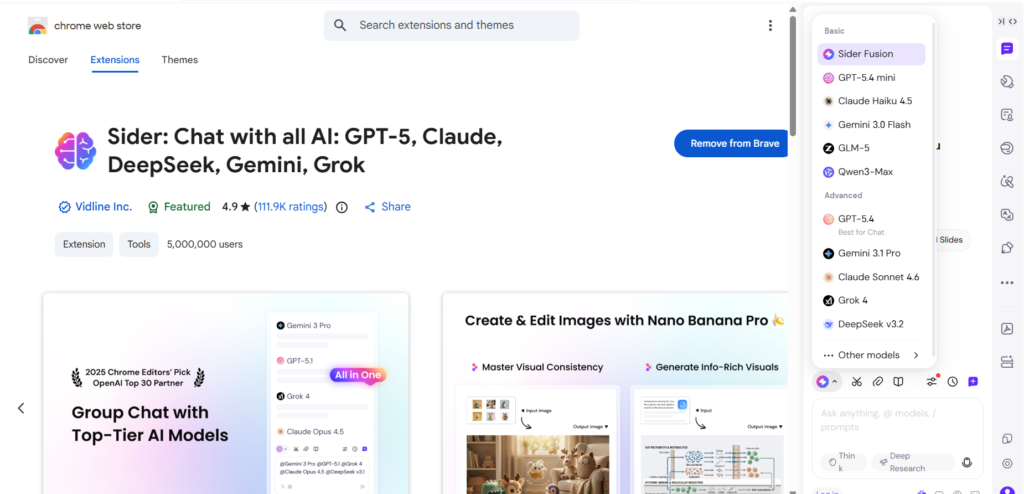
🤖All-in-One Assistant • Free + Paid ($9/mo) • ⭐ 4.8/5
If I had to keep only one AI Chrome extension, it would be this one. Sider AI puts ChatGPT, Claude, and Gemini directly into your browser sidebar — all at once. You do not need to open a new tab.
You do not need to switch between tools. You highlight any text on any webpage and instantly get summaries, explanations, rewrites, or translations right there.
On average, this tool cuts my research time by 30–45%, and what used to take an hour now takes much less.
I use it for research for my blogs. For example, when I start researching a blog topic, I usually open multiple tabs with detailed and authentic content.
Instead of spending 20 minutes reading line by line, highlight important sections or points and ask Sider to simplify this for me. It takes 10 seconds. One thing I noticed is that sometimes summaries can miss small details, so for important work, I still double-check the original content.
✅ Best for: Anyone who uses multiple AI tools daily and wants them in one place💡 Pro tip: Switch between GPT-4 and Claude depending on your task. I use Claude for writing and GPT-4 for research — you can do both without leaving your browser.
2. Perplexity AI — My Daily Research Partner
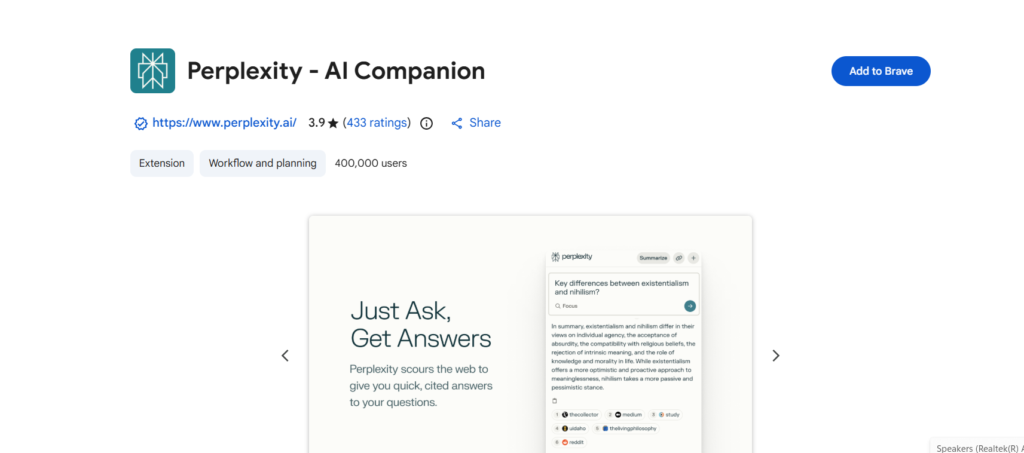
Research Assistant • Free + Pro ($20/mo) • ⭐ 4.7/5
Google is great for finding websites, but Perplexity is great for finding answers. That is the difference. Every time I read something online for my blogs and want to quickly verify a fact or go deeper on a topic, I use the Perplexity extension.
I click it, type my question, and get a direct answer with citations — so I can see exactly where the information came from. Your previous questions will be saved, can be revisited again.
It saves me 2–3 hours/day on heavy research. (When you use it depends on your work)
When I research info for my blog, I ask Perplexity extension to give me answers with sources, but for critical information, double checks from original sources.
✅ Best for: Bloggers, researchers, students, and anyone who spends time verifying information online💡
Pro tip: Use it on top of Google, not instead of it. Google is still better for local searches and finding specific websites. Perplexity is better for knowledge questions.
3. Monica AI — For Emails and Writing
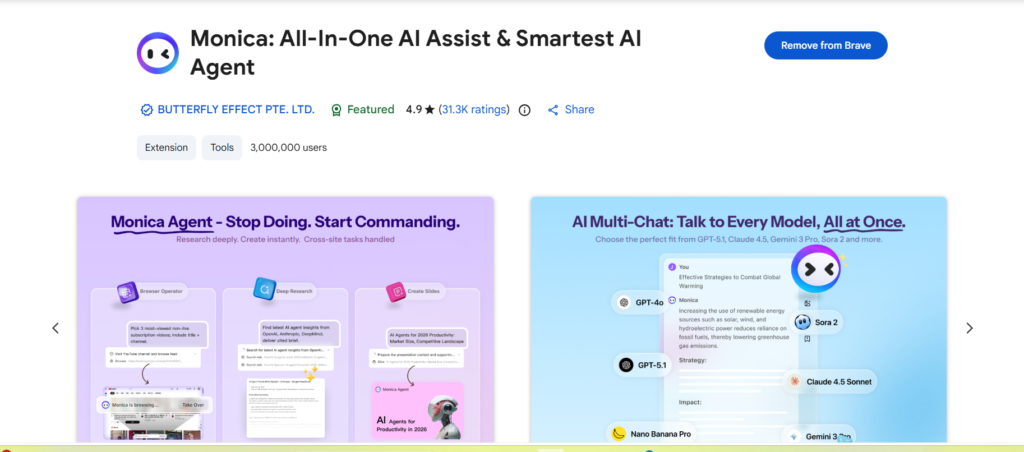
⭐ Best for: People who write a lot of emails and social media content.
✍️ Writing & Email • Free + Paid ($9/mo) • ⭐ 4.6/5
Monica AI Extension is like swiss army knife which can fit into your browser, it provides multiple AI models on your browsing page.
It supports many AI models, like ChatGPT (GPT-4o, GPT-4), Claude 3.5, Gemini 1.5 Pro, Llama 3. The main feature I love is the short key. When you press Ctrl’M OR Cmd+M, it opens a chat window.
Monica AI is like having a writing assistant that lives inside your browser. It works in Gmail, Google Docs, LinkedIn, Twitter, and pretty much anywhere you type.
The standout feature is its compose tool. You highlight a blank text box, hit the Monica button, and describe what you want to write.
It generates the full thing in seconds. I tested it on a cold outreach email — the result was clean, professional, and actually good.
| What I liked most: Image generation is built in. If you need a quick visual for a post, you don’t need to open a separate tool. | The downside: Free plan feels limited with heavy use. Can slightly slow down your browser if you have many extensions running. |
4. Grammarly — Still the Best Writing Assistant
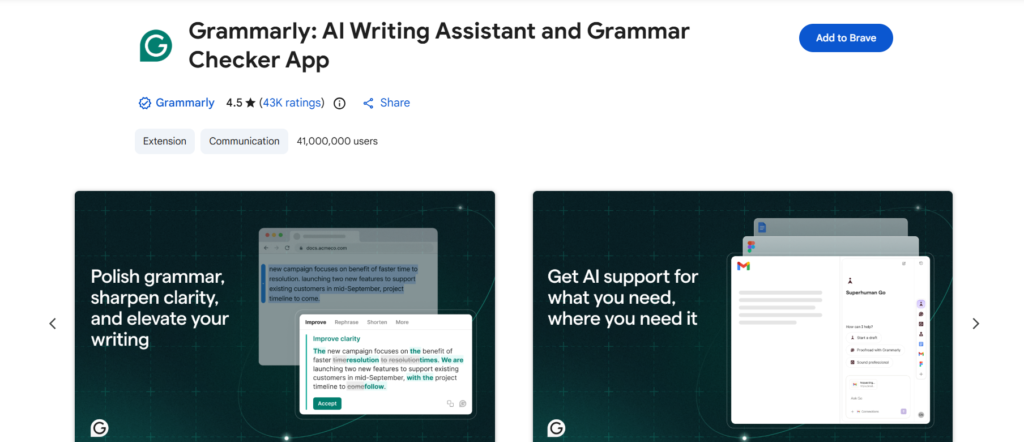
⭐ Best for: Anyone who writes anything online.
Grammarly has been around for years, but in 2026, it’s still the best writing extension out there. And it’s gotten a lot smarter.
It doesn’t just fix grammar anymore. It rewrites full sentences, adjusts your tone, and even generates complete drafts from a short prompt. It works in Gmail, Google Docs, LinkedIn, and even in WordPress.
What makes Grammarly different is how quiet it is. It works in the background. You don’t have to open it or click anything. It just sits there and fixes things as you type.
| What I liked most: The tone detector. It tells you if your email sounds too harsh or too formal, and suggests how to fix it. | The downside: The free plan is solid, but the best features — full sentence rewrites and tone suggestions — are on the paid plan ($12/month). |
5. Bardeen — The Automation Tool That Saves Hours
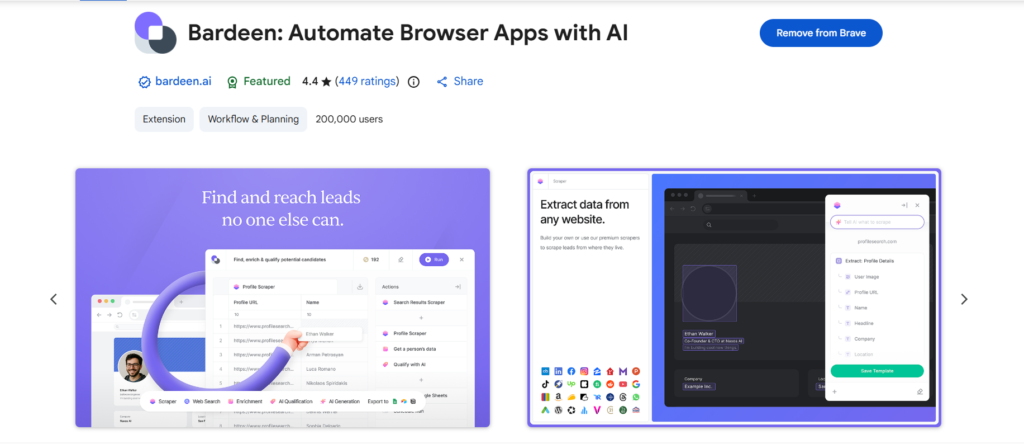
Workflow Automation • Free + Paid ($10/mo) • ⭐ 4.5/5
⭐ Best for: People who move data between apps manually (and hate it).
If you’ve ever copy-pasted data from a website into a Google Sheet, or manually moved leads from LinkedIn into a CRM — Bardeen is made for you.
Bardeen is a no-code automation tool. You can build workflows that connect your browser to apps like Notion, Slack, Airtable, HubSpot, and Google Sheets. In 2026, it’s added AI to understand what’s on your screen and automate actions based on it.
I tested a workflow that pulled job listings from a website and added them to a Google Sheet automatically. Setup took 10 minutes. The automation ran in 10 seconds.
| What I liked most: Hundreds of pre-built “playbooks” you can use in one click — no setup needed. | The downside: Learning curve. First time can feel overwhelming. Take 15 minutes with their starter guide and it clicks. |
6. Eightify — YouTube Summarizer I Can’t Live Without
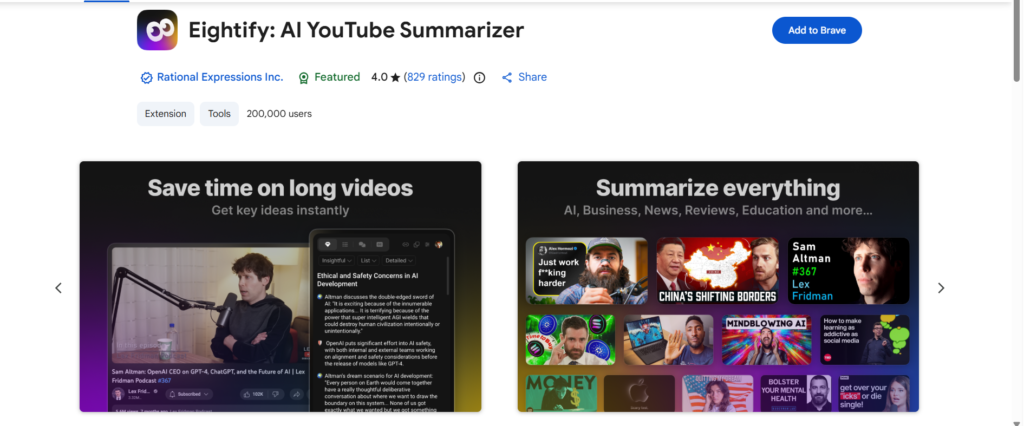
YouTube Summarizer • Free + Paid ($8/mo) • ⭐ 4.6/5
Eightify AI is a powerful productivity tool which uses AI (GPT technology) to summarize YouTube videos.
I watch a lot of YouTube for research and learning. Or I used to. Now I mostly use Eightify and save hours every week. Eightify sits under every YouTube video.
Click one button, and it extracts the key insights from the video in bullet points — with timestamps so you can jump to the exact moment if something sounds interesting.
Not only does the video, it analyzes top comments to let you know what community opinion is, and provides additional context.This tool supports 40+ languages, meaning you can summarize any foreign language video.
| Pros (Advantages) | Cons (Disadvantages) |
| Time-Saving: Summarizes hour-long videos into 8 key points in under 10 seconds. | Oversimplification: May miss subtle nuances or complex technical details due to brevity. |
| Seamless Integration: Works directly inside the YouTube interface with a single button. | Distraction: The summary overlay can sometimes feel cluttered on smaller screens. |
| Timestamped Insights: Allows users to jump directly to specific parts of the video from the summary. | Inaccuracy: If the video’s auto-captions are poor, the timestamps and summary might be slightly off. |
| Community Insights: Analyzes top comments to provide public opinion and extra context. | Comment Quality: If a video has “spammy” or disabled comments, this feature provides no value. |
| Multilingual Support: Can translate and summarize content from 40+ different languages. | Transcript Dependent: Cannot summarize videos that do not have any subtitles or transcripts available. |
| Cross-Platform: Available as a Chrome/Safari extension and mobile apps (iOS/Android). | Limited Customization: Users cannot (yet) ask custom follow-up questions to the AI. |
| Free Trial: Offers a 7-day trial or limited free summaries to test the tool. | Subscription Cost: Frequent users must pay a monthly fee, which might be high for casual viewers. |
7. HARPA AI — Web Automation That Actually Works
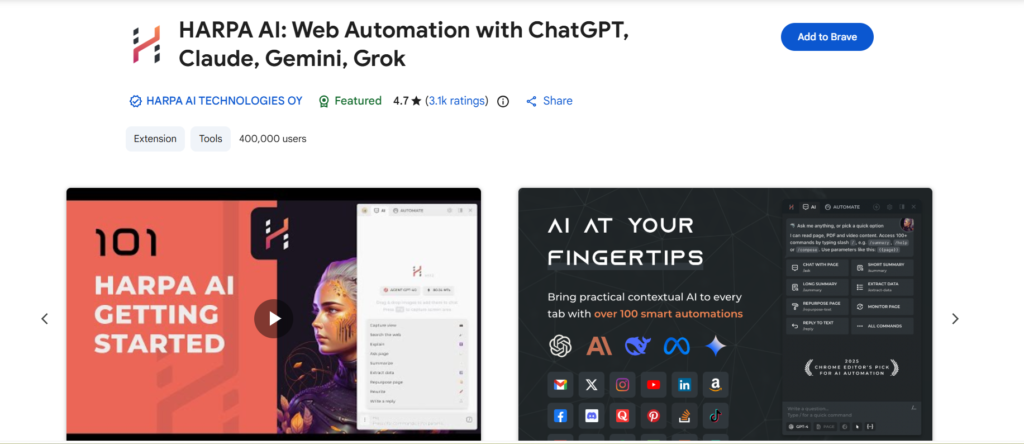
Web Automation • Free + Paid ($14/mo) • ⭐ 4.⅘
⭐ Best for: Power users who want to automate repetitive browser tasks.
HARPA AI is the most underrated extension on this list.
Here’s what makes it special: it doesn’t just answer questions — it does things for you. It can fill out forms, scrape data from websites, track prices on Amazon, monitor competitor pages for changes, and even send that data to tools like Zapier or Make.
I tested the price tracking feature on a laptop I’ve been watching on Amazon. I set it up in about 3 minutes, and HARPA sent me an email alert when the price dropped. That kind of automation used to require a developer.
| What I liked most: 100+ prebuilt commands — “summarize this page,” “write a tweet from this article,” “extract all emails from this page” — they just work. | The downside: Free plan only gives 100 total AI command runs ever. Once you hit that limit, you have to upgrade. Know this going in. |
🔒 Privacy note: HARPA stores your data locally. It does not send your browsing history to any servers.
8. Glasp — How I Highlight and Remember Everything
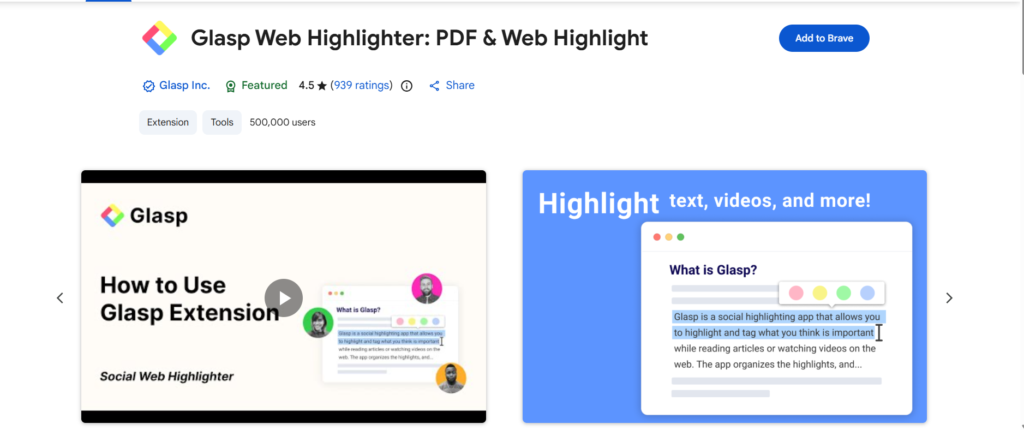
Highlight & Remember • Free • ⭐ 4.5/5
The Glass AI is a free Chrome extension that captures, organizes, and summarizes online content.
I read a lot. Always have.
The problem was that I could never remember where I read something or find it again when I needed it. Glasp fixed this completely.
It is a highlighter that works on any webpage. You highlight text, add a note if you want, and it automatically saves everything to your Glasp profile.
You can organize by topic, search across everything you have ever highlighted, and even share highlights with others.
These features I loved most.
1. YouTube Summary & Transcript: IT generates instant summaries of YouTube videos using ChatGPT or Claude and provides you with a timestamped transcript allowing you to highlight text within the transcript itself.
2. AI Digital Clone (Digital Twin): This is Glass’s most futuristic feature. It acts as a “Digital Twin” of your brain, built entirely from the highlights, notes, and articles you have saved. You can chat with your clone and ask what you want.
You can use shortcuts (like Ctrl+X twice) to quickly trigger summaries or highlighters without breaking your reading flow.
9. Tactiq — Never Take Meeting Notes Again
Meeting Transcription • Free + Paid ($8/mo) • ⭐ 4.6/5
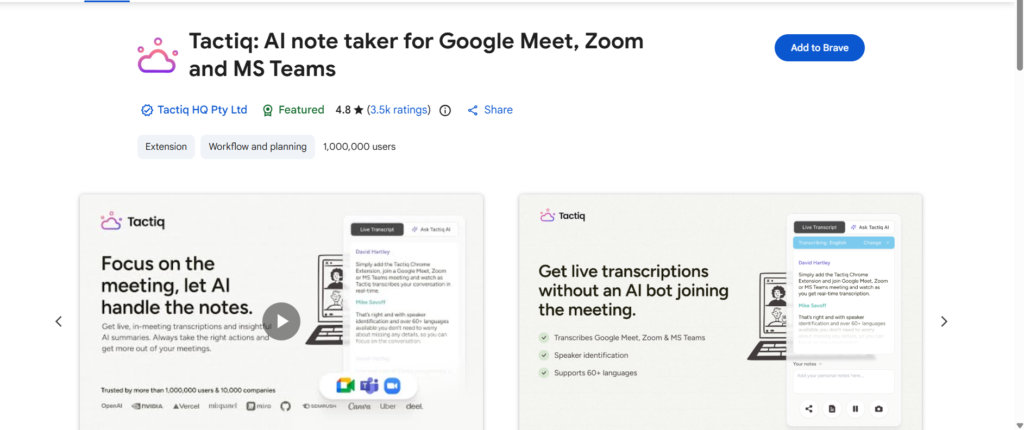
If you attend video calls on Google Meet, Zoom, or Microsoft Teams, Tactiq will change how you work. It automatically transcribes your meetings in real time while they are happening.
At the end of the call, it generates AI summaries, action items, and key decisions. You get a clean document of everything that was discussed without typing a single note.
I stopped taking meeting notes entirely after I installed this. I am now actually present in meetings instead of half-listening while frantically writing things down.
And because the transcript is searchable, I can find any specific thing that was said in any meeting going back months.
This is my favorite because I attend meetings with clients, and remember this is not a promotional post.
✅ Best for: Anyone who has regular video calls for work — remote workers, managers, freelancers, consultants
💡 Pro tip: Share the AI summary with everyone on the call immediately after. It takes one click and means everyone has the same understanding of what was decided — no confusion, no misremembered commitments.
10. Important: How Many Should You Install?
I need to say this clearly because most extension lists never do. Do not install all 10 at once.
Chrome extensions run in the background. Each one uses memory and processing power.
If you install too many, your browser slows down noticeably — which completely defeats the purpose of installing productivity tools in the first place.
| 💡 My Recommendation: Install 3 to 5 extensions maximum. Use them for 2 weeks. See which ones you actually open. Keep those and remove the rest. A browser with 3 extensions you use every day is worth ten times more than a browser with 15 extensions you ignore. |
Before you go — if you are new to AI tools, these two posts will help you understand the bigger picture:
11. Frequently Asked Questions
For most people, Sider AI is the best all-round AI Chrome extension in 2026. It gives you access to multiple AI models — including ChatGPT, Claude, and Gemini — directly in your browser sidebar without switching tabs. For writing specifically, Grammarly remains the strongest option. For research, Perplexity is hard to beat.
Most AI Chrome extensions offer a free tier that is genuinely useful. Grammarly and Glasp are completely free with no premium required for core features. Sider AI, Perplexity, Monica, Bardeen, Eightify, Merlin, HARPA, and Tactiq all offer free plans with limitations — typically on the number of daily uses. Paid plans typically cost between $8 and $20 per month.
Yes, if you install too many. Each active extension uses memory. Running 3 to 5 AI extensions simultaneously is generally fine on a modern computer. Running 10 or more will noticeably slow down Chrome. The practical advice is to keep only the extensions you actually use active, and disable or remove the rest.
It depends on the extension. Reputable extensions like Grammarly, Perplexity, and Sider AI have clear privacy policies and strong security track records. Always check what permissions an extension requests before installing it. Be cautious about giving extensions access to all your data on all websites — some extensions need this to function, but others request more access than they actually need.
Glasp is the best completely free AI Chrome extension — no premium plan required, full functionality available for free. For AI assistance, Perplexity’s free tier is exceptionally generous, offering multiple searches daily with source-cited answers. Grammarly’s free version also covers all basic writing needs without requiring a paid upgrade.
Yes, and many people do. Extensions like Tactiq for meeting transcription, Bardeen for workflow automation, and Grammarly for professional writing are used by millions of professionals daily. If you handle sensitive company information, check whether your employer has policies about AI tool usage and whether the extension’s privacy policy meets your organization’s requirements.